I built a TV filter
for my dog
My dog was barking at the TV. So I built an app that spots animals, hides the picture, and brings it back when they've gone. The Apple TV keeps playing throughout.
The goal: calmer TV time for my dog
My dog was barking at the TV when animals appeared. I wanted to hide them quickly enough that we could watch something without keeping a hand on the remote. Our setup is an Apple TV connected to a Samsung S95F, and I wanted everyone in the house to keep using it normally.
The ideal version would cover just the animal and leave the rest of the scene alone. It needed to work in the background, without anyone remembering to switch it on. It also needed to notice when the animal had gone, so watching one dog scene wouldn't leave us staring at a black screen for the rest of the evening.
What I tried
A black box over just the dog
My first idea was to put a black rectangle over the dog. Everyone could carry on watching the rest of the scene, with a mysteriously censored pet wandering through it.
There are two separate jobs there: finding the animal, and changing the picture the TV receives. A detector can draw a box on its own preview, but the Samsung would still receive the original HDMI picture from the Apple TV. To hide that region on the actual TV, the computer would have to capture the programme, cover the animal, and send a new video output to the TV.
That would put an always-on computer in the middle of everything we watched. It would have to keep audio in sync and preserve the chosen resolution and HDR. I didn't build that version. Before turning the PC into our video player, I wanted to see if there was a simpler way to hide the picture temporarily.
Setting up an Apple TV remote on Linux
For the computer to react to an animal, it needed a way to control the Apple TV. We set that up as part of this project: pyatv supplied the pairing and remote commands, and teevans' Omarchy Apple TV Remote gave us a desktop remote. We paired the Apple TV with Linux and wired those commands into Animal Guard.[1][2]
One early response we tried was a Home press: find an animal, send Home, and get it off the screen. It worked, but it also kicked us out of the show. I wanted to hide the scene while playback carried on, so we could return to the programme automatically.
Challenges: getting a picture without breaking the remote
A webcam would also be watching the room
The detector needed to see the programme somehow. A webcam pointed at the TV looked like an easy option because it would leave the HDMI cables alone. But it would have to deal with reflections, the screen's angle, and changing room light. A room microphone would also hear my actual dog.
The privacy side bothered me too. A camera looking across the living room could pick up people and surroundings. Cropping the image down to the TV afterwards wouldn't stop those things being captured in the first place. I wanted to filter the programme without adding a camera watching us watch it.
There was another problem for automatic recovery: if the TV picture went black, the webcam would see a black screen. It couldn't tell us whether the animal had left the source video. A separate HDMI feed could keep showing the scene even while we hid the physical display.
The capture card got no picture
I wanted to use an Elgato Game Capture Neo to bring the Apple TV's video and audio into the computer over USB. The first capture attempt gave us no usable picture. The Apple TV's HDCP encryption was blocking capture; the Neo needs an unencrypted HDMI input.[3]
We used a cheap Chinese RYXN HDMI splitter to work around that protection. With it in the chain, the capture card finally got a picture. That's why the splitter is there: it got us past the encryption problem so the computer could actually see the programme.[4]
The working layout sends Apple TV into the splitter. One output goes through our existing Hue Sync Box to the Samsung. The other goes to the Elgato, which supplies USB video and HDMI audio to Animal Guard. The computer watches that copy; the main picture travels through the viewing hardware as usual.
The splitter fixed the picture and broke CEC
Getting a picture came with a catch: the Apple TV remote's handy TV power control stopped working. The splitter wasn't passing CEC, the HDMI control line that lets those devices talk to each other. The video was now usable, but the normal remote experience had taken a step backwards.
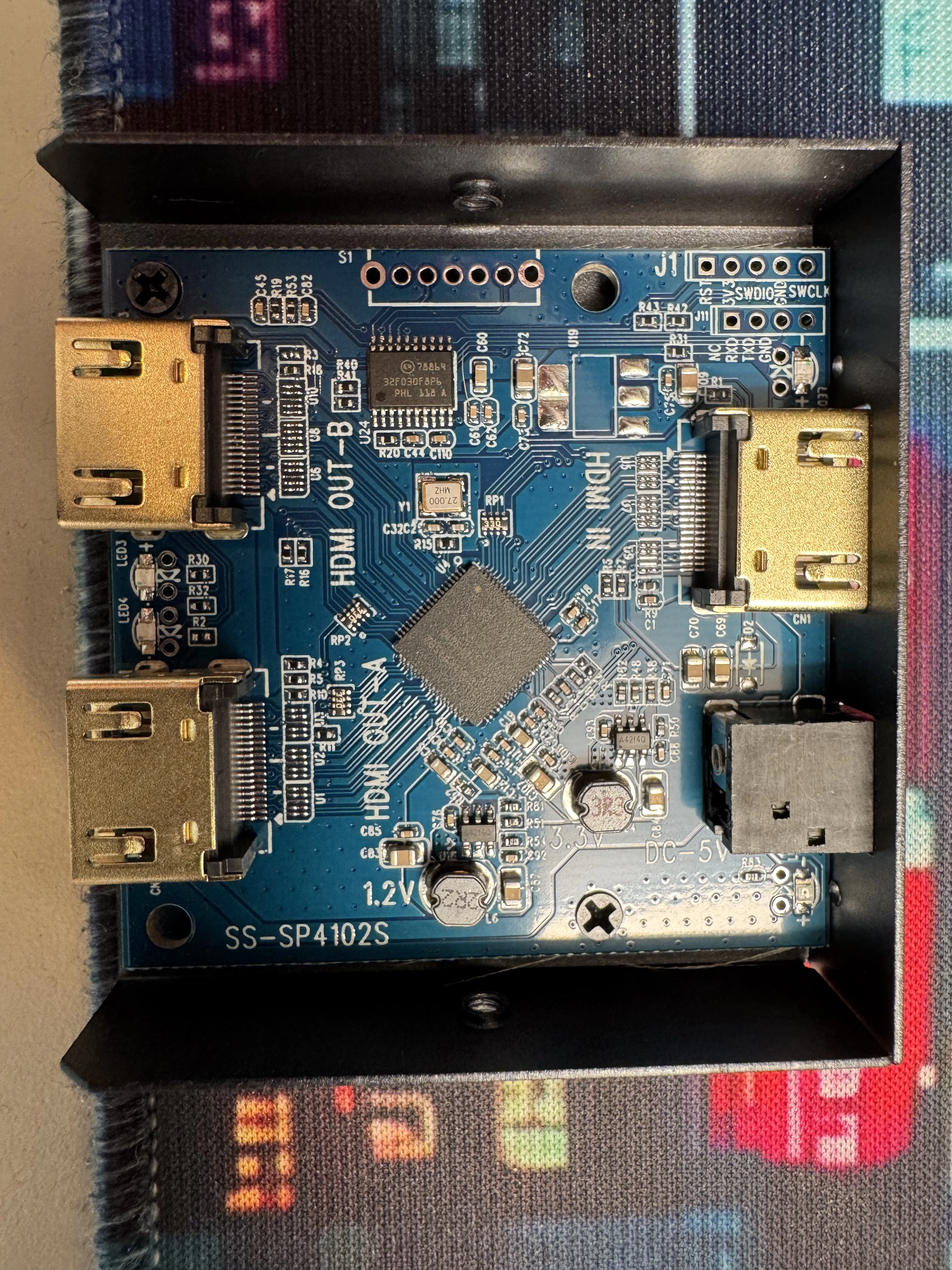
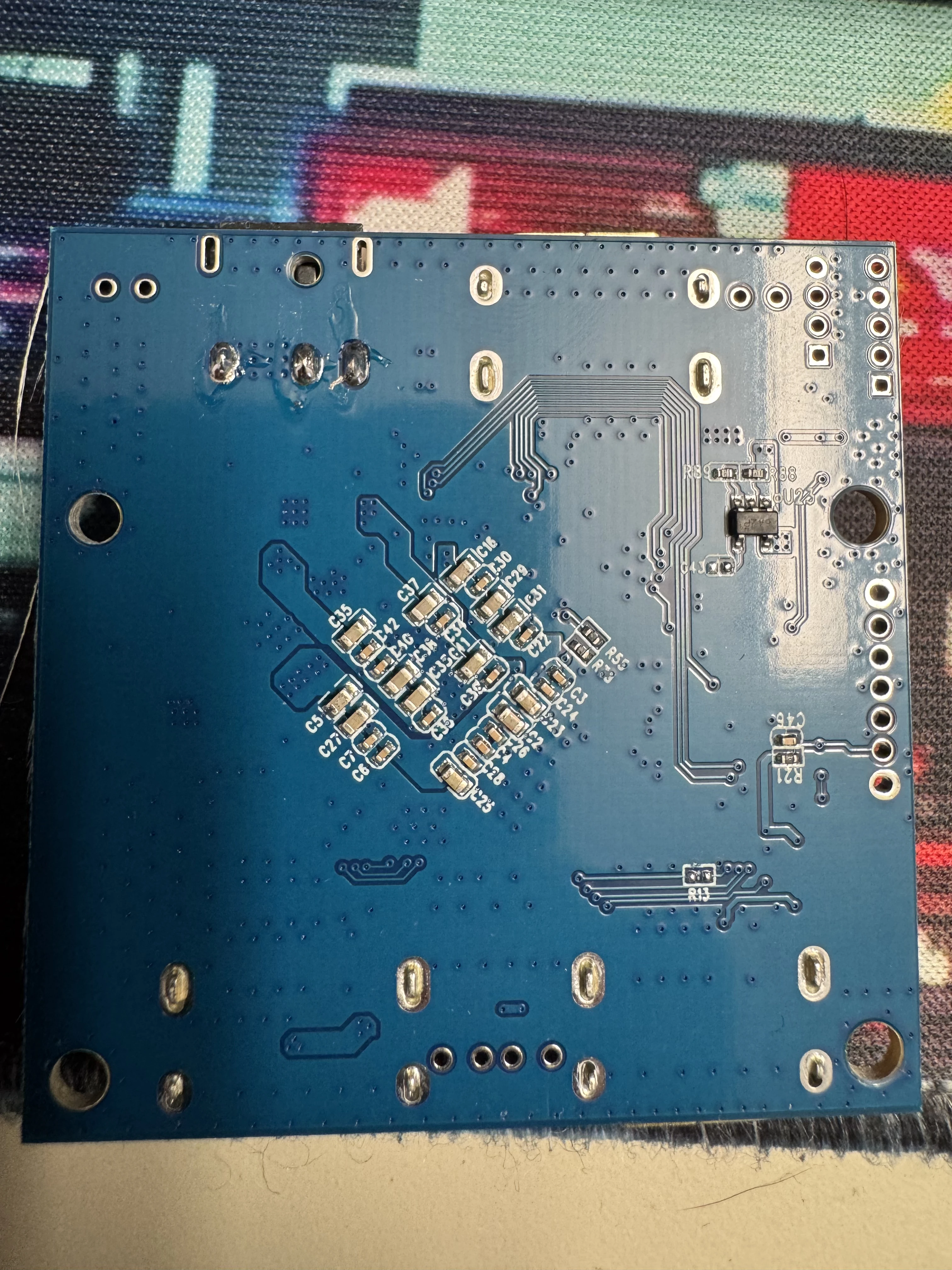
That led to opening the splitter and looking at the board. On a standard Type A HDMI connector, CEC uses pin 13. The idea was to solder a jumper between the input's pin-13 path and the TV-bound output's pin-13 path, restoring the control connection while keeping the video workaround.[5]
A HyperHDR discussion had a useful lead: an EZCOO owner reported soldering a jumper from input pin 13 to output 1 pin 13 on a board marked "SP12H2 V0.4 2424". We wanted to investigate the same sort of fix on our RYXN. It was still a proposed repair; the connector pads and continuity on this particular board needed checking before soldering.[6][4]
The final solution: let the Samsung hide its own picture
Samsung's built-in Picture Off feature gave us another option. It makes the display go black while the TV stays on and the sound keeps playing. Samsung puts it in the Accessibility menu on recent models. It normally lets you listen to the TV with the screen off; for this project, it meant I could hide an animal without stopping the Apple TV or generating a replacement video.[7]
Turning it on manually wouldn't solve much, though. The app needed to do it as soon as the detector found an animal. To automate it, I needed a way for the computer to trigger that feature.
Getting the app to press the button
The Samsung has a local remote-control API. A computer on the home network can send commands that act like remote-button presses. Projects such as SamsungTVWS document that network interface. Our app talks to it directly over a WebSocket connection, using Python's aiohttp library.[8]
We paired the computer with the TV and saved the connection's authorisation token locally. No cloud account is involved. Then we tried the Picture Off command and checked the actual TV: the screen went black. That was the useful test, because an API accepting a command doesn't tell you what happened on the physical display.
It needed a little fiddling to make repeated commands behave. On my S95F, Picture Off is a toggle, so sending it twice can bring the picture back. The app now uses a colour-button command to restore the picture, waits 150 ms, then sends Picture Off. Bringing the picture back uses that colour key, with delayed retries if the TV misses the first wake request. Automatic protection sends no Back or Home presses.
It also checks that the network connection is answering before relying on it. The TV reports power state, but it doesn't report whether Picture Off is active. That's why the app says "command sent" instead of claiming it can see whether the panel is lit.
Why it can bring the picture back
The capture card receives the Apple TV's video, not a camera view of the Samsung's screen. Picture Off only hides the physical display. The USB feed keeps arriving, so Animal Guard can keep checking the scene while the TV is black.
- The app checks the captured video for an animal.
- Once confirmed, it sends Picture Off to the Samsung. The Apple TV keeps playing.
- The detector keeps watching its separate HDMI copy.
- After 0.6 seconds without an animal, it requests picture restoration.
That was the reason to keep the computer on a separate capture branch. It can both notice an animal arriving and notice it leaving, without having to produce the video everyone watches.
Finding the animal without hiding every human face
The detector itself needed some work too. Human faces and cartoon shapes sometimes looked animal-ish enough to cause trouble. A TV that keeps going black for the wrong reason gets old quickly.
The current setup starts with Ultralytics YOLOE-26 to find possible animals. It runs through TensorRT. Google SigLIP 2 checks the proposed regions against animal and non-animal descriptions, looking at the crop and the wider scene. A small local verifier, trained on those image features, adds another check. Saving the mistakes gave me examples to improve that last step.[9][10]
Two consecutive moderate detections confirm an incident; a strong verified result can act on the first check. It doesn't have to win a species quiz. If the checks agree there's an animal, arguing about whether it's a cat or a horse shouldn't leave it on screen.
There's an audio side too. Google YAMNet runs through LiteRT and looks for barking in the HDMI audio. It rechecks a roughly one-second window every 120 ms. Right now that result is shown in diagnostics; barking alone doesn't blank the picture. Picture Off leaves the sound playing, so off-screen barking is still something to work on.[11]
The software bits, if you're curious
Animal Guard is Python 3.12, with NumPy, OpenCV, FFmpeg and PyAV for the media work, PyTorch and Hugging Face Transformers for the models, and aiohttp for the local TV connection. The models run on this computer. No frames go to an online AI service, and there are no token charges each time a dog turns up.
The app in use
Animal Guard lives behind a paw icon in Omarchy, my Linux desktop. Its QML/Quickshell panel has Live TV, History, and Diagnostics. Protection starts on by default. Screen on, Screen off, and Pause/Resume are the everyday controls. Closing the panel leaves it running; when the Apple TV sleeps, the capture readers and models stop and release their resources.
The dog it actually found
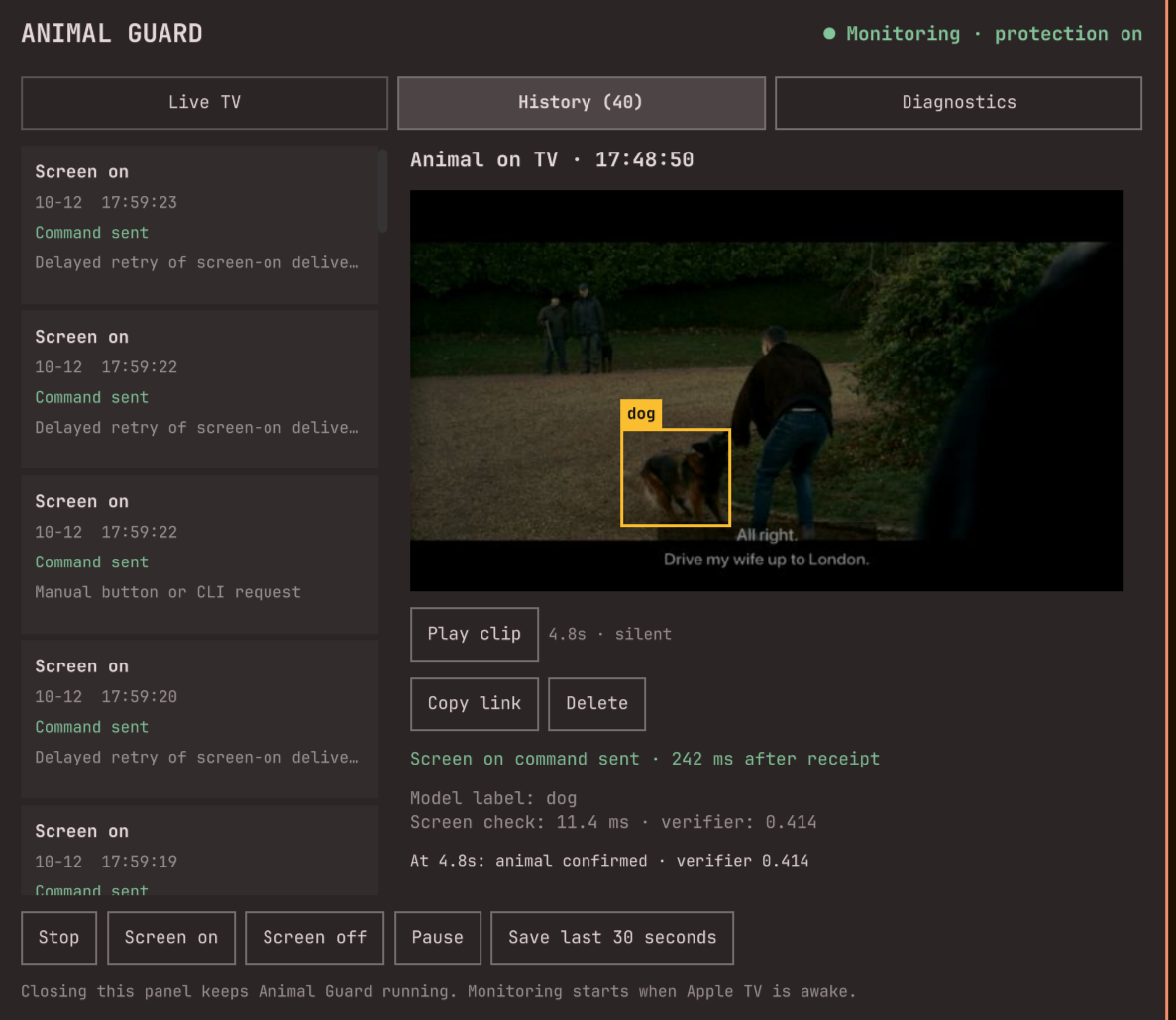
A saved TV scene with the dog boxed in yellow. The app keeps the frame, the model's decision, and the screen-command history together, so I can see what happened.
The yellow box shows where the detector found the dog.
The saved clip lets me inspect the frames around that moment.
The left column records screen requests, including manual presses and retries.
History has become the useful debugging tool. The yellow bounding box shows the proposed animal region, and I can inspect the boxes and decisions frame by frame in a silent clip. If it misses something, Save last 30 seconds keeps the recent footage so I can look at it afterwards.
One of my favourite catches was a dog in a Netflix recommendation tile. We hadn't even started the show. It checks the menus just like the shows.
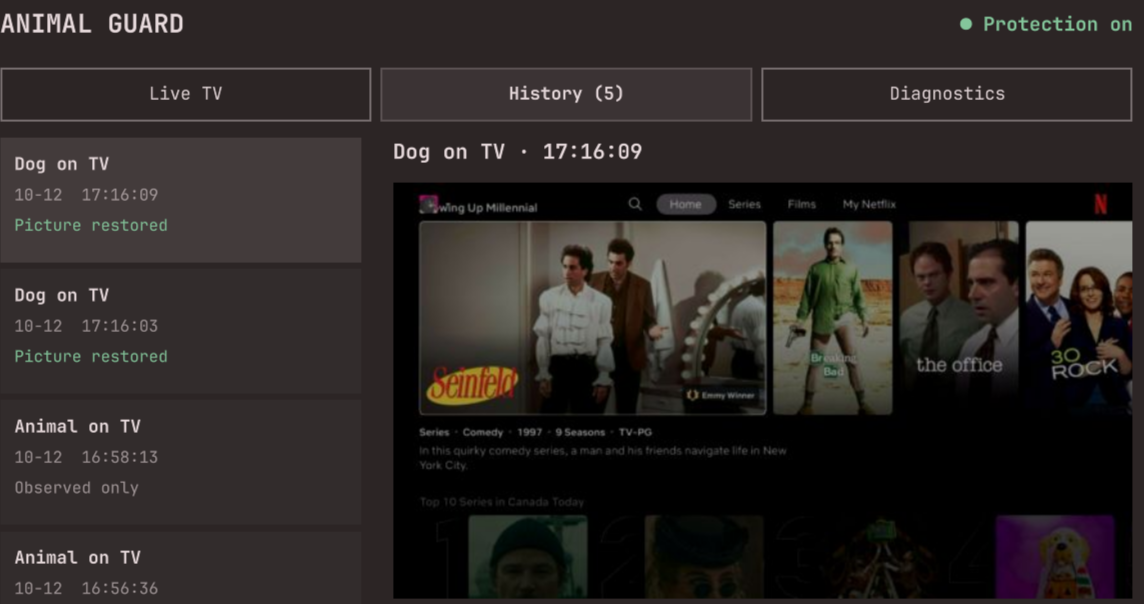
Even Scooby-Doo gets barked at
My dog even barks at Scooby-Doo, so cartoon dogs had to count too. The detector looks for animated animals as well as real ones.
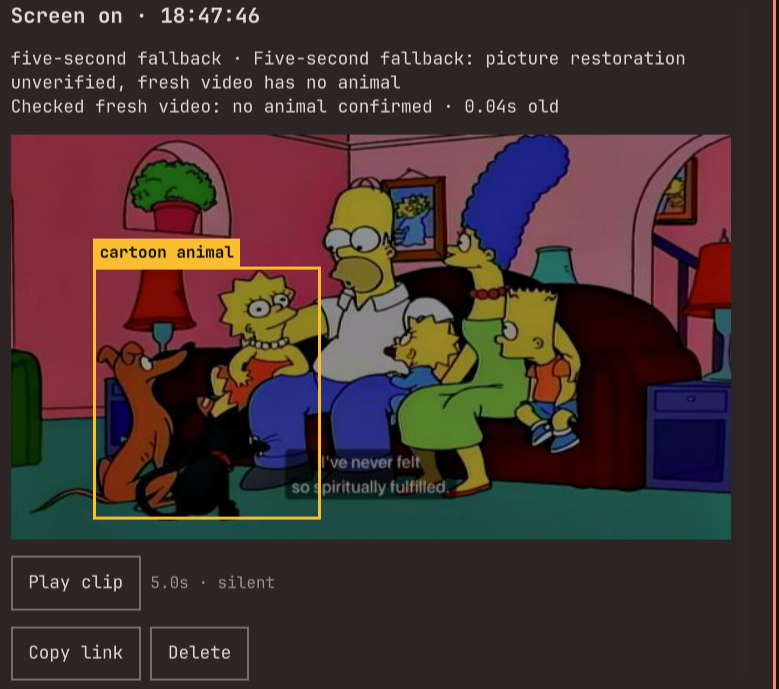
I also didn't want this little project filling the disk. The rolling 30-second buffer stays in RAM. Only the five newest automatic captures are kept, with about five seconds of lead-in. Manual saves stay until I delete them. Every Screen on/Screen off request is logged separately and stays until I delete it too, including manual presses and retries. That's why the screenshot can say "History (40)" without there being 40 saved videos.
How fast is it, and what's it costing the PC?
On my i9-11900KF and RTX 3080 Ti, a visual check took a sampled median of 10.6 ms. The feed comes in at 1280×720 and 30 fps; the detector checks up to 15 frames a second using a smaller 576×324 image. These figures came from a 45-second run during ordinary TV playback.[12]
Sampled median, including verification. 95th percentile: 14.6 ms.
Sampled median for an audio window that's already been collected.
49.1% of one logical CPU. About 3.1% across the machine's 16.
Whole-card median, including the desktop. App GPU memory: 974 MiB.
That 10.6 ms isn't the time from a dog appearing to the TV going black. Capture buffering, waiting for a check, confirmation, and the Samsung command all add time. A separate manual Off request took 165.3 ms, including the built-in 150 ms wait. The capture delivered another 23 frames over the next roughly 0.8 seconds while that request was in effect.[12]
I haven't filmed and timed the physical screen change yet, so I don't have an honest end-to-end number. The app's "received to action" timing starts after capture has already delivered the frame.
Test conditions and the earlier detection results
The run used 45 one-second samples on 12 October 2026. Host memory was about 1.97 GiB for the service group. CPU includes the capture readers. GPU activity includes other work on the card; the 974 MiB figure counts Animal Guard's compute processes. The full measurement notes and samples are available.
Earlier development checks found 73 of 82 labelled animal frames, with no triggers on 75 non-animal frames. Bark tuning triggered on 39 of 40 dog recordings and none of 138 other recordings. Those were small, selected sets from an earlier version, and the audio set was used for tuning. They helped improve the app; they aren't an accuracy guarantee for the current version.
Could this be a little box behind the TV?
I considered an ESP32 because a tiny always-on gadget sounded much nicer than keeping a desktop awake. But this particular model stack was too much for it. An ESP32-S3 has 512 KB of internal SRAM and CPUs up to 240 MHz, with external-memory options. It can run tiny vision models, but it isn't a home for the current YOLOE and SigLIP setup.[13]
A Raspberry Pi is a more appealing experiment. A Pi 5 with an AI HAT accelerator could be a starting point for a smaller detector. It would need a model the accelerator supports, a replacement for the NVIDIA engine, and a plan for verification. I haven't built or benchmarked that version yet.[14]
The webcam would still be worth exploring for a setup where changing the HDMI chain is a pain, but it would need a different rule for restoring a picture it can no longer see. For this build, the separate feed and Samsung's own Picture Off feature let me keep the ordinary Apple TV experience. I still like the idea of censoring just the dog; that's a larger video-output project for another day.
Links and test notes
The app's glue code lives in the AppleTV project. These are the repos, hardware notes, and local measurements used for this build.
- pyatv: supported features and protocols · repository. Companion remote, app, and power capabilities used by the Linux controller.
- teevans/omarchy-apple-tv-remote. The Omarchy desktop remote set up as part of this project.
- Elgato: unencrypted HDMI input requirements (2026). Lists Game Capture Neo among devices that cannot accept HDCP-protected input.
- Project owner's shared hardware discussion (2026). Records the working RYXN/Hue chain, missing CEC, and proposed board investigation; does not establish a completed soldering modification.
- HDMI Specification 1.3, Table 4-1 (2006). Assigns CEC to pin 13 of the standard Type A connector.
- HyperHDR discussion #1004 (2024–2025). First-hand continuity tests and a reported input-pin-13 to output-pin-13 jumper on a specified EZCOO board. The RYXN wiring still needs checking.
- Samsung: picture off with audio on. Panel-only blanking and restoration by a non-volume/non-power remote key.
- SamsungTVWS: Samsung network remote implementation. Documents the local WebSocket remote interface and connection approval. Animal Guard uses its own aiohttp connection.
- Ultralytics YOLOE documentation · repository. Open-vocabulary detection and the YOLOE-26 family used for region proposals.
- Google Research: SigLIP 2 (2025). Image/text encoders used for the independent verification stage.
- TensorFlow Models: YAMNet. The audio-event model used for bark diagnostics.
- Local measurements and earlier development checks (12 October 2026). Sample values, hardware, methodology, command-channel test, and the limits of the evaluation data.
- Espressif: ESP32-S3. Internal memory, CPU capability, and external-memory support.
- Raspberry Pi: AI HAT documentation. Pi 5 accelerator options, supported workload categories, and the 13/26 TOPS variants.